
Know whether anyone in your workforce is on an exclusion list.
Exclusion Check screens employees, new hires, contractors and vendors against federal and state exclusion lists every month. When someone in your organization appears on a list, they are flagged on their profile, so your team reviews one record instead of cross-checking a spreadsheet.
- Person
- Jordan Ellis
- Role
- Patient Access Representative
- List
- State exclusion list
- Reason on list
- License revoked
- Active user
- Yes
- User profile
- Flagged
Illustrative example. Names and details are invented.
Clear last month does not mean clear today.
Exclusion lists change as new actions are added. Someone who was clear when their profile was created can appear on a list months later, and a vendor contact can change without anyone in compliance hearing about it.
Exclusion Check screens everyone again each month, in the same platform your privacy and compliance team already works in, so a flagged result becomes part of the record you use for investigations and reporting.
Everyone you work with, against the lists that apply.
Screening covers the people on your payroll and the organizations you pay, from the day their profile is created to every month they stay.
OIG List of Excluded Individuals and Entities (LEIE)
SAM.gov exclusions
State Medicaid exclusion lists
Employees, new hires, contractors and vendors
Every result in one list
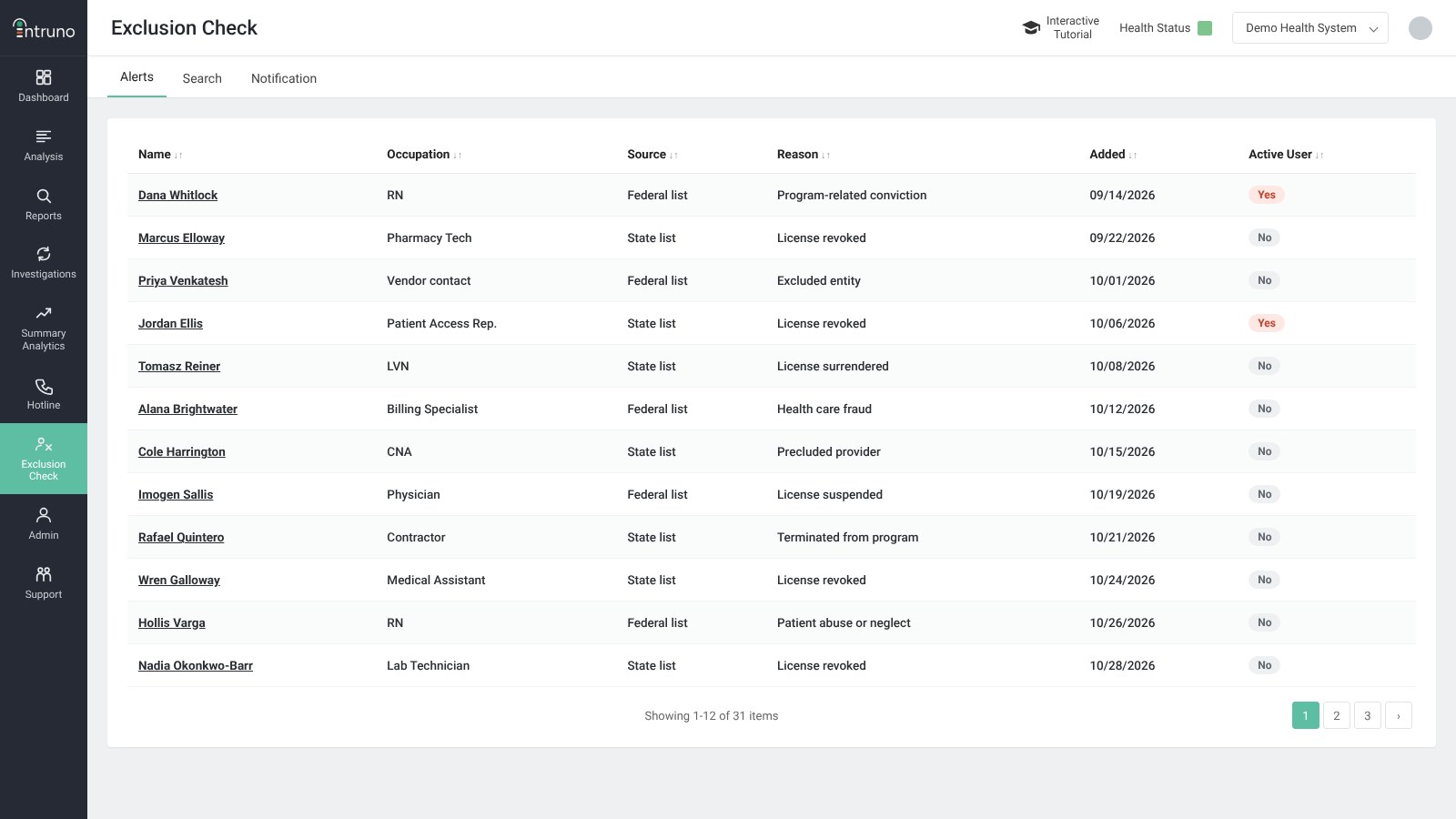
Exclusion Check lists each person found on an exclusion list, with their occupation, which list they appear on, the reason recorded on that list and when it was added. The Active User column tells you at a glance whether the result is someone in your organization.
Monitoring starts when the profile does.
Once someone joins and their profile is created in Intruno, they are included in every monthly screening, so no one has to remember to check them again.
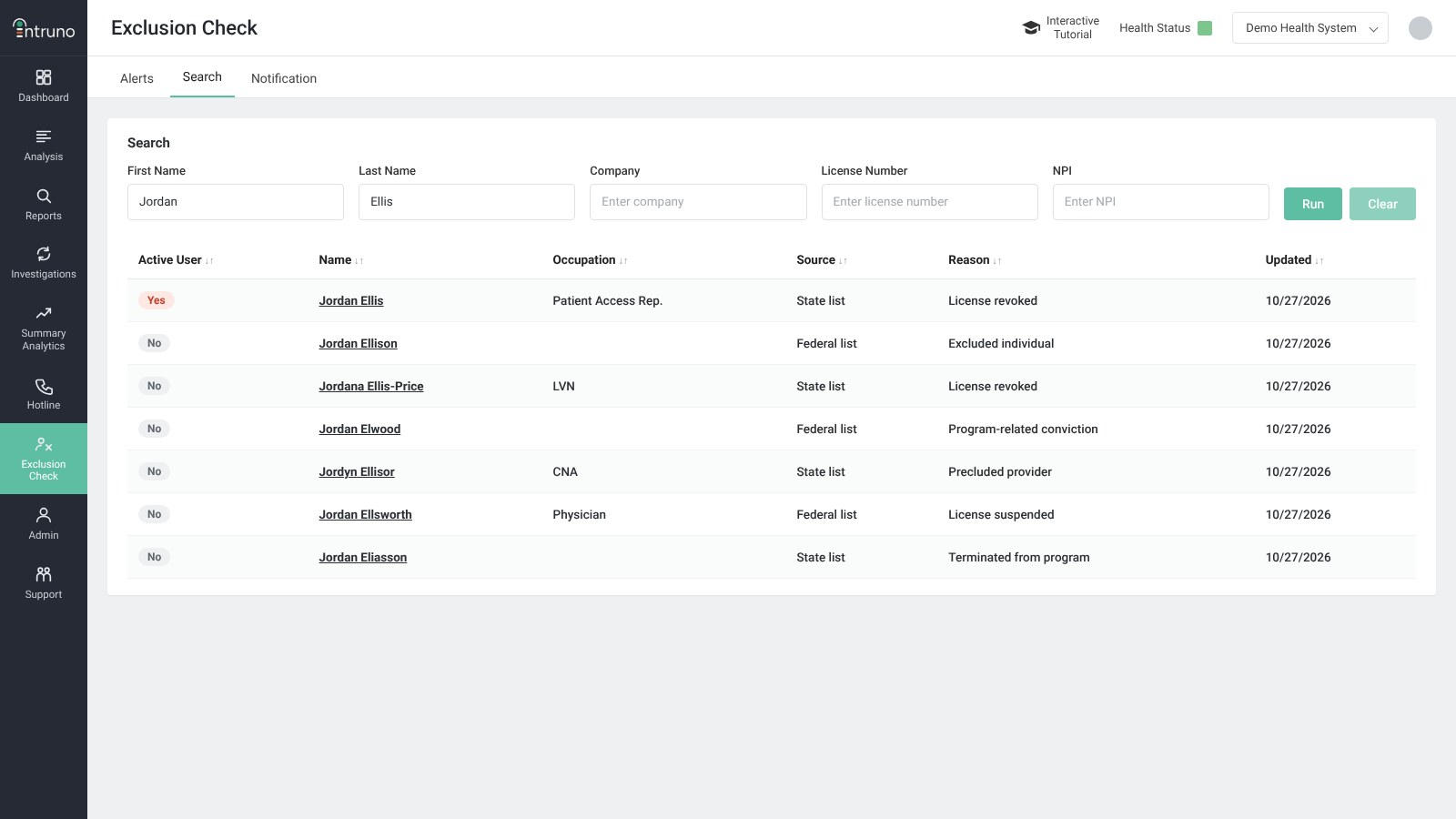
Your team can also search by first and last name, company, license number or NPI whenever a question comes up. Results show every listing with a similar name, with the people in your organization marked as active users.
A flagged result opens the person’s profile
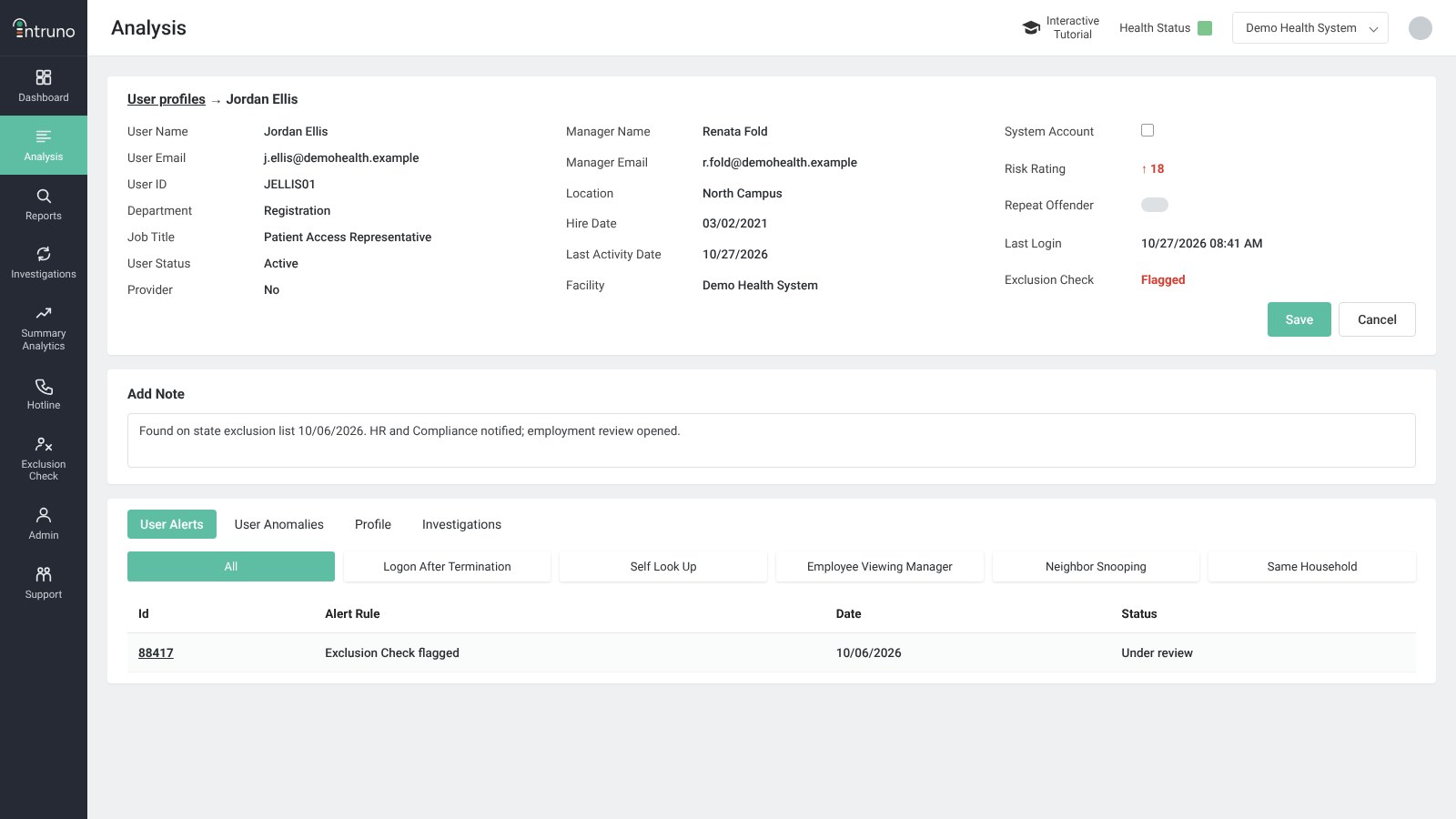
Select a name in the results and the person’s user profile opens, with Exclusion Check shown as Flagged next to their risk rating, alerts and investigations. Reviewers record their notes on the same profile, so the decision and the evidence stay together.
New results reach the right people, on your schedule
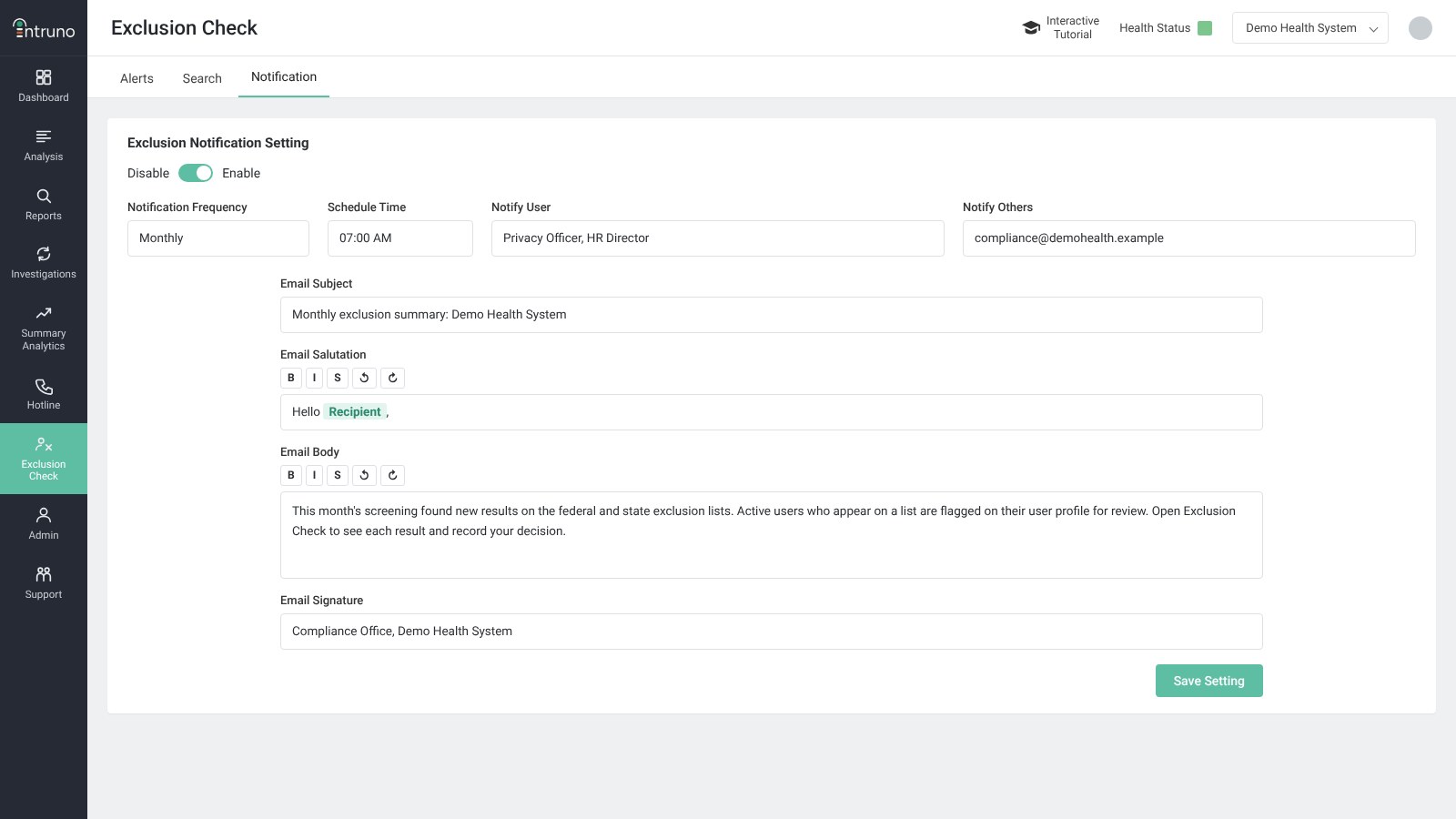
Turn on exclusion notifications and Intruno emails your team when screening flags someone new. Choose how often and at what time they go out, and who receives them, from people in Intruno to any other address. The subject, greeting and message are yours to set.
Screen, flag, review.
Exclusion Check fits into the program you already run.
Screen
Every month, employees, new hires, contractors and vendors are checked against federal and state exclusion lists.
Flag
Results are compared with the people in your organization, so an active user on a list is flagged on their profile and stands out from look-alike names.
Review
Your team is notified and reviewers document the decision on the profile, where the evidence lives.
See Exclusion Check with your own roster.
A working session covers how screening, results and notifications would run for your workforce and vendors.